Sometimes important Microsoft Teams channels get hidden without us realizing it — which can mean missing updates or key communication.
Use the tips below to make sure you’re seeing the channels you need.
Why Do Channels Get Hidden (Even When They’re Being Used)?
This is a common question — and you’re not doing anything wrong.
Microsoft Teams decides whether a channel is “active” based on each individual user’s behavior, not how often the channel is used by the group overall.
That means:
-
- A channel can have posts every week.
- Be used heavily by leaders or directors
- A channel can still get hidden for someone who hasn’t personally opened or interacted with it recently
If you mostly rely on:
-
- Notifications
- Email digests
- Mentions only
Teams may assume you don’t need the channel and hide it automatically.
Pinning important channels tells Teams that the channel matters to you, which helps prevent it from being hidden again.
How to Make Sure Important Channels Are Set to “Show”
Using your computer
-
- Select your ‘Team’. Example: CedarCreek Church

-
- A list of channels that are not hidden will appear
- Some channels may be hidden. Example: Staff
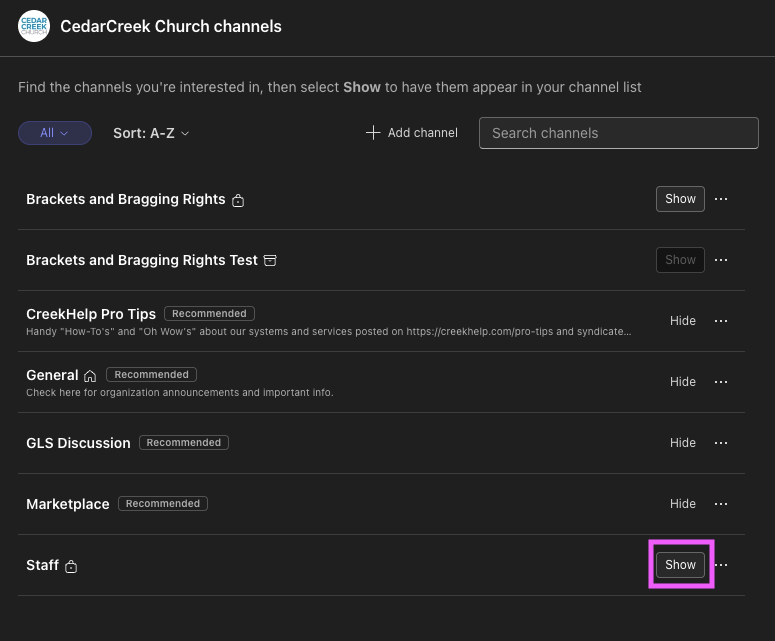
- Click ‘See All Channels’ to see if you have any channels that are hidden
- If a channel has an option to ‘Show’, it means the channel has been hidden from your application.
- Click ‘Show’ to add this channel back into your application.
- A list of channels that are not hidden will appear
Using your mobile device
-
- Open your ‘Team’. Example: CedarCreek Church

-
- A list of channels that are not hidden will appear
- Some channels may be hidden. Example: Staff
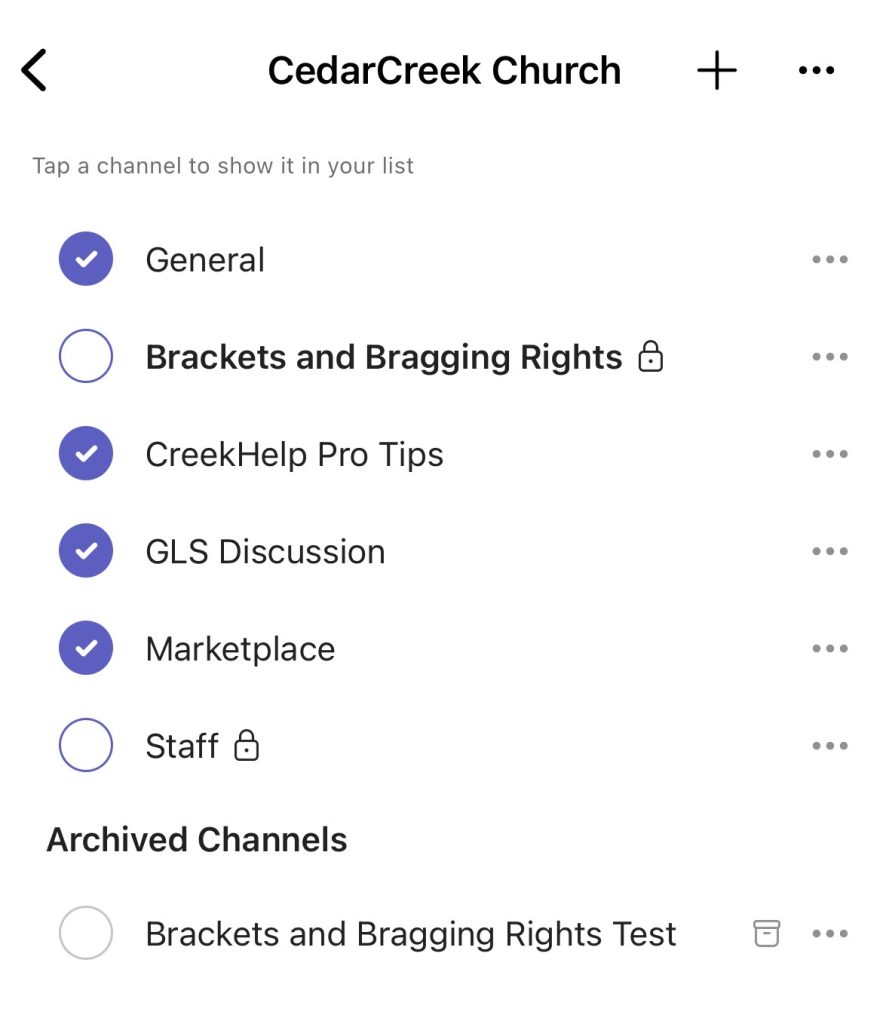
- Click ‘See All Channels’ to see if you have any channels that are hidden
- Android users, you will see ‘# hidden channels’ if there are hidden channels.
- Add a checkmark to a channel to add this channel back into your application. Any channel without a checkmark will not show on your list.
- A list of channels that are not hidden will appear
-
- You can repeat these steps within each of your teams to see if you have any channels that have been hidden and should be shown.
How do I keep a channel from being hidden in the future?
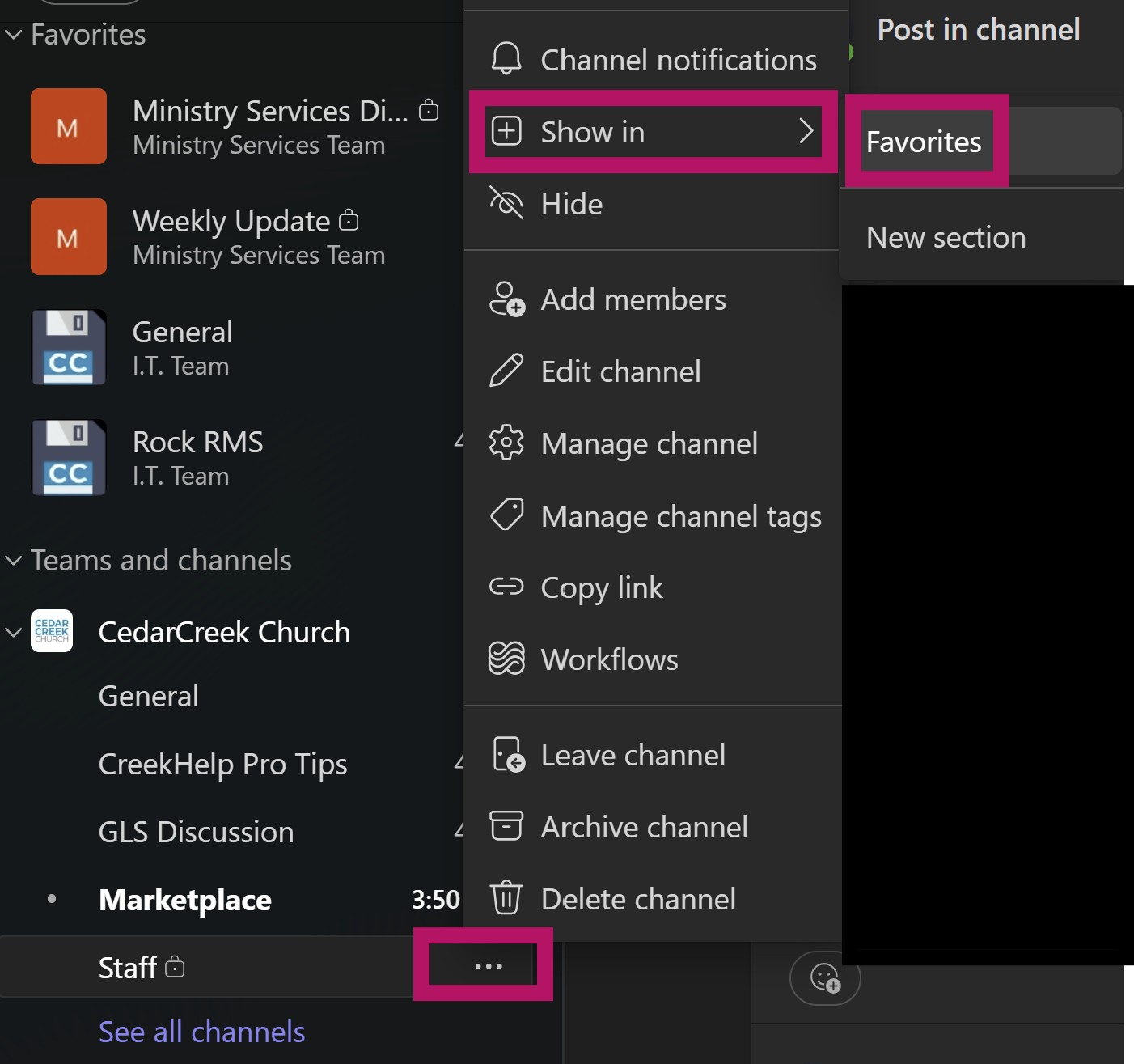
Adding a favorite / pinning channels helps keep the most important ones easy to find. Keeping them at the top of your Teams list so they are less likely to be missed.
-
- Open your ‘Team’. Example: CedarCreek Church
- Right click the channel name (or click the three dots ⋯)
- Select Pin / Show In