
How to Upload a PDF and Use It in a Mobile App Content Item
This guide walks you through how to upload a PDF to a Rock Content channel and use it within a content item in the mobile app.
Step 1: Open Your Content Channel
Navigate to the content channel where you want to add your PDF.
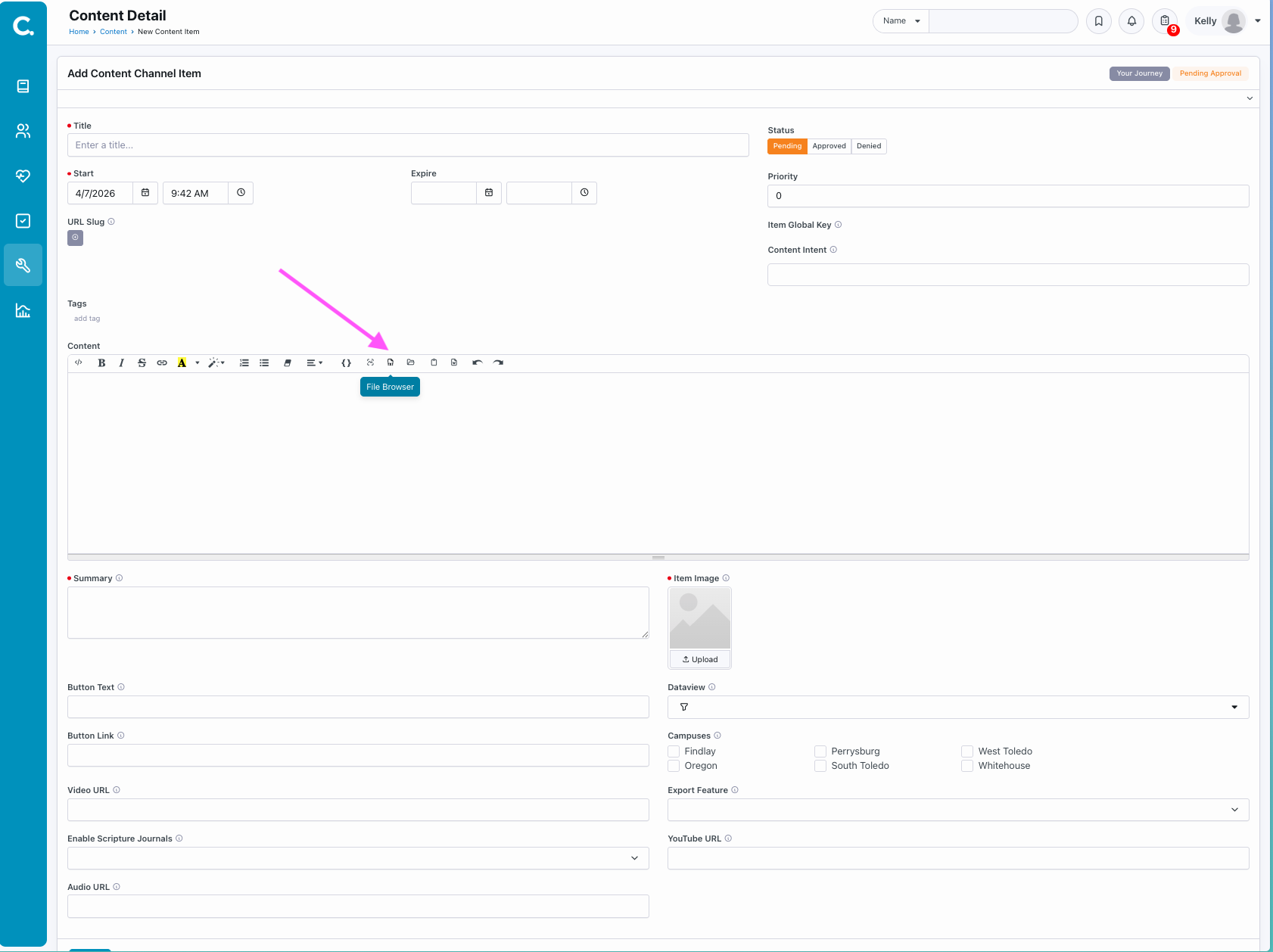
Step 2: Open the File Browser
In the content editor, locate and click the File Browser button.
Step 3: Upload Your File
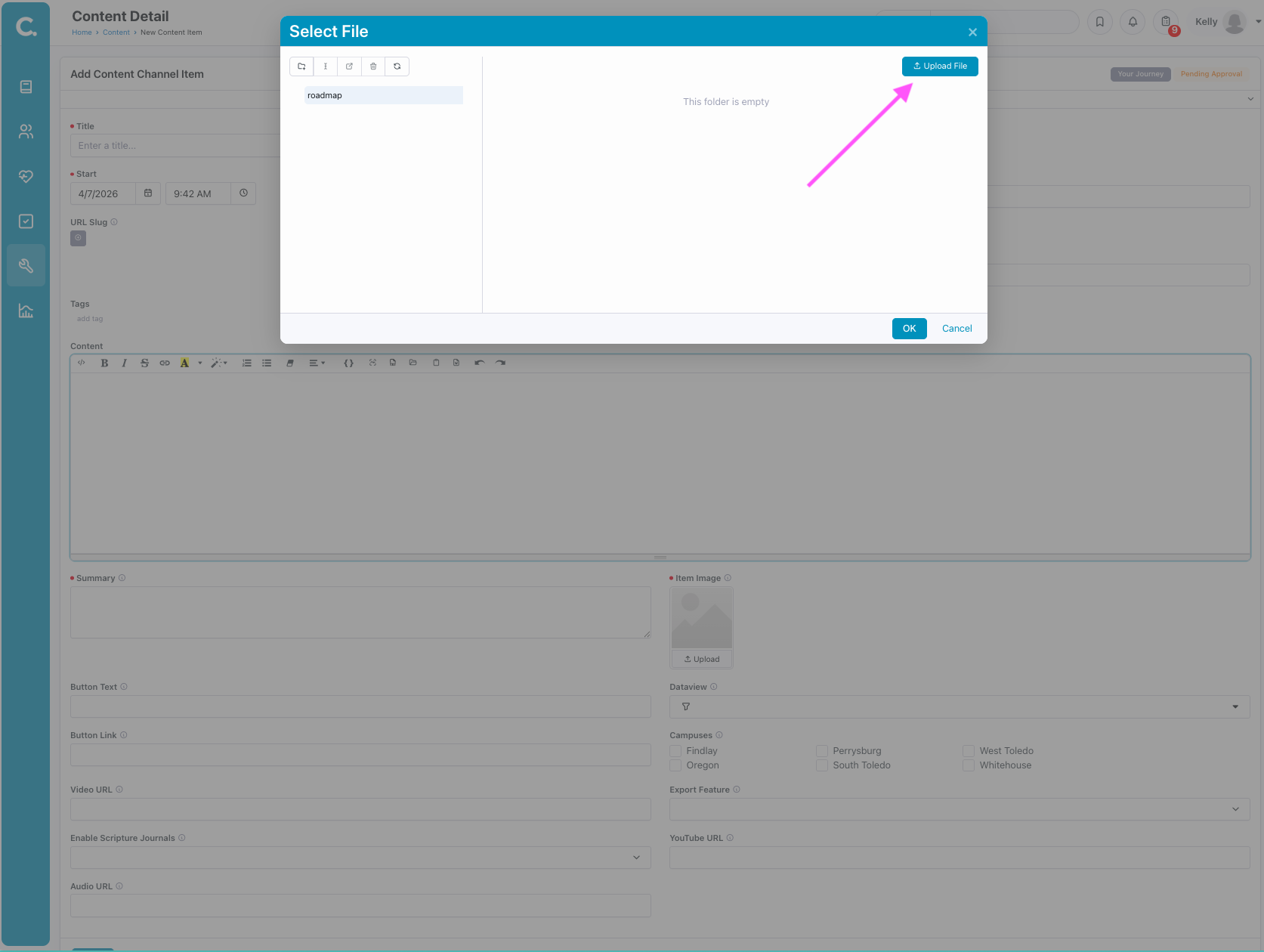
In the File Browser window, click Upload File.
Step 4: Select and Upload Your PDF
Choose the PDF file from your computer and upload it. Once uploaded, it will appear in the file list.
Step 5: Get the File URL
Find your uploaded PDF and click the Download icon.
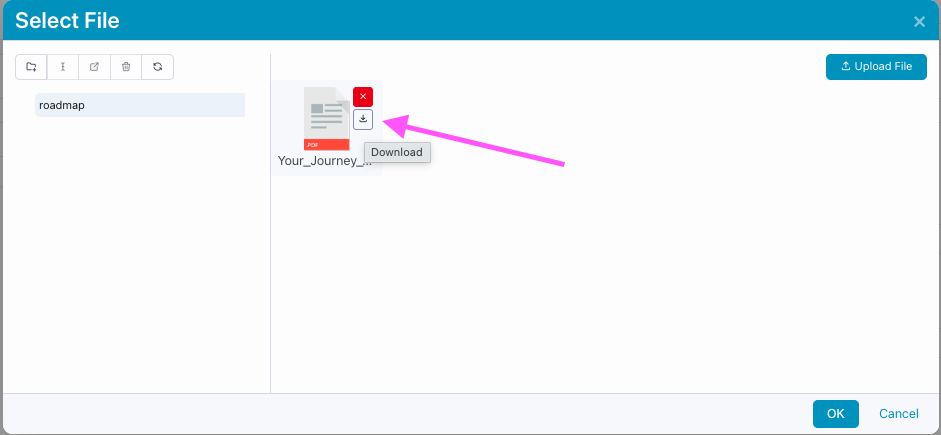
This will open the PDF in a new browser tab.
Step 6: Adjust the URL
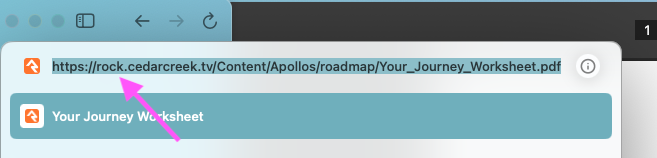
Copy the URL from the browser’s address bar.
Before using it, update the beginning of the URL:
- Change:
Rock.CedarCreek.tv - To:
My.CedarCreek.tv
This ensures the link works correctly in the mobile app.
Step 7: Add the Link to Your Content Item
Paste the updated URL into your content item:
- As a hyperlink within the content, or
- As a Button Link
✅ Final Result
Your PDF is now accessible in the mobile app, allowing users to view or download it directly from your content item.
Tips
- Make sure your PDF file name is clear and descriptive.
- Double-check the updated URL before publishing.
- Test the link in the mobile app to confirm it works as expected.