

Rock has a robust way of collecting and storing notes particular to a person, group or other property in the database. I thought it would be helpful if we took a few minutes today to talk through the options available to you!
There are 2 different style notes that are most helpful to you. Person notes and group notes. Person notes are those notes that are directly associated with a person in Rock. Group notes are those notes that are directly associated with a group in Rock.
NOTE: Not all note types listed below are available to every staff member or person with access to RockRMS.
PERSON NOTES
The following notes are available from the [ Person Profile ] tab on each Rock profile.
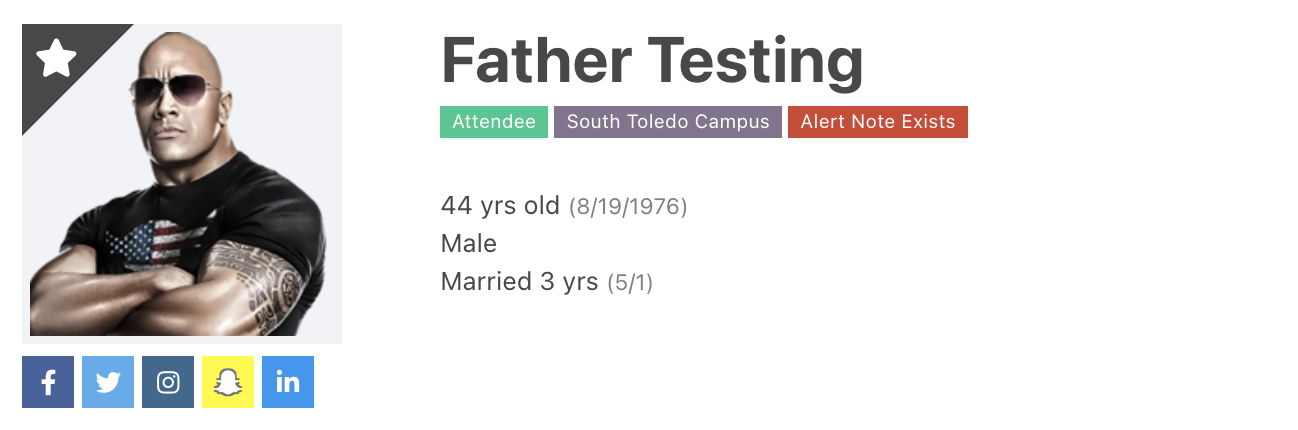
Alert Notes: When writing or viewing a note in this section, you are given 3 different types (listed below). These note types allow you the option of checking [ ALERT ] after you have completed the note. By checking [ Alert ], you will place a red Alert Note Exists tag next to a users name on their profile. When a note is added in any of these 3 categories, an email is automatically sent to a group of people to ensure that specific staff are aware of the added note. More information on these notes can be found below.
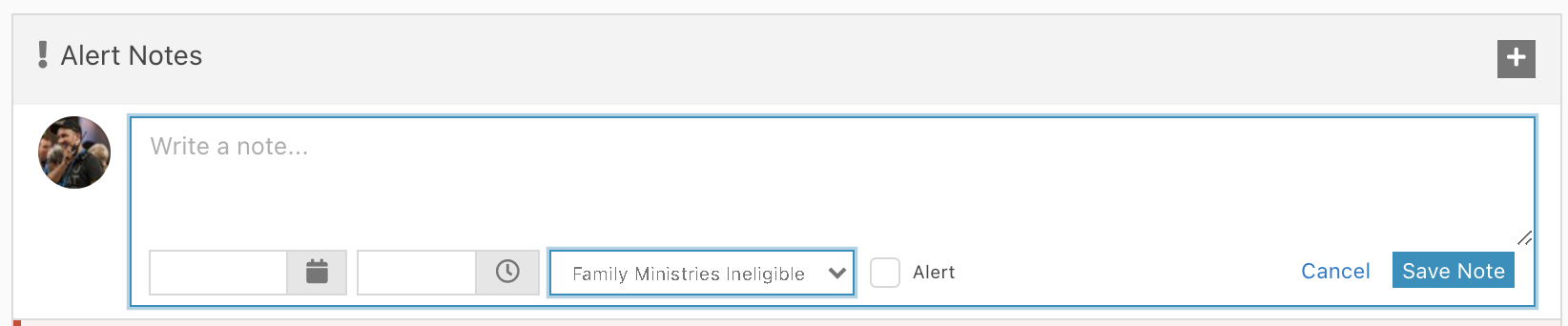
- Family Ministry Ineligible
- This is used if we have a concern about them serving with children or students under the age of 18
- Who can view these notes:
- Arts Directors
- Care Directors
- Central Directors
- Facilities Directors
- Project Managers
- Who can edit these notes:
- Executive Directors
- Campus Pastors
- Central Safety Team Directors
- Groups Directors
- Kids Directors
- Next Steps Directors
- Senior Directors
- Student Directors
- Who will get notified of new notes:
- Campus Pastors
- Safety Threat Details
- This is used for people who are an actual safety threat to our buildings, staff or attendees.
- Who can view these notes:
- Arts Directors
- Care Directors
- Central Directors
- Facilities Directors
- Project Managers
- Who can edit these notes:
- Executive Directors
- Campus Pastors
- Central Safety Team Directors
- Groups Directors
- Kids Directors
- Next Steps Directors
- Senior Directors
- Student Directors
- Who will get notified of new notes:
- Campus Pastors
- Volunteer Serving Details
- This is used if we have a general concern or note regarding them serving in any ministry at any campus
- Who can view these notes:
- Arts Directors
- Care Directors
- Central Directors
- Facilities Directors
- Project Managers
- Who can edit these notes:
- Executive Directors
- Campus Pastors
- Central Safety Team Directors
- Groups Directors
- Kids Directors
- Next Steps Directors
- Senior Directors
- Student Directors
- Who will get notified of new notes:
- Campus Pastors
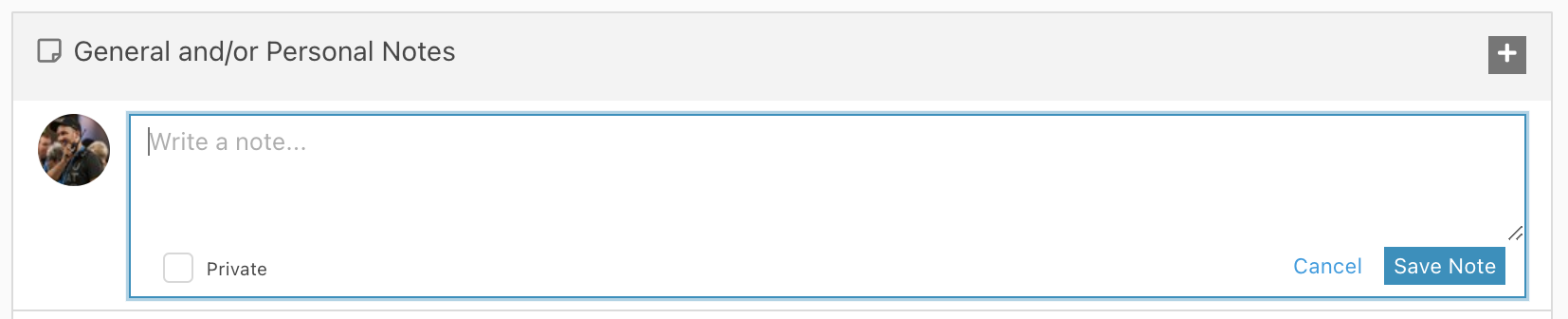
General Notes And/Or Personal Notes: Notes of this type do not have any specific nature to them. These are designed to be general or personal. These note types allow you the option of checking [ Private ] after you have completed the note. By checking [ Private ], you will be the only person to see this note.
- Who can view these notes:
- Everyone
- Who can edit these notes:
- Everyone
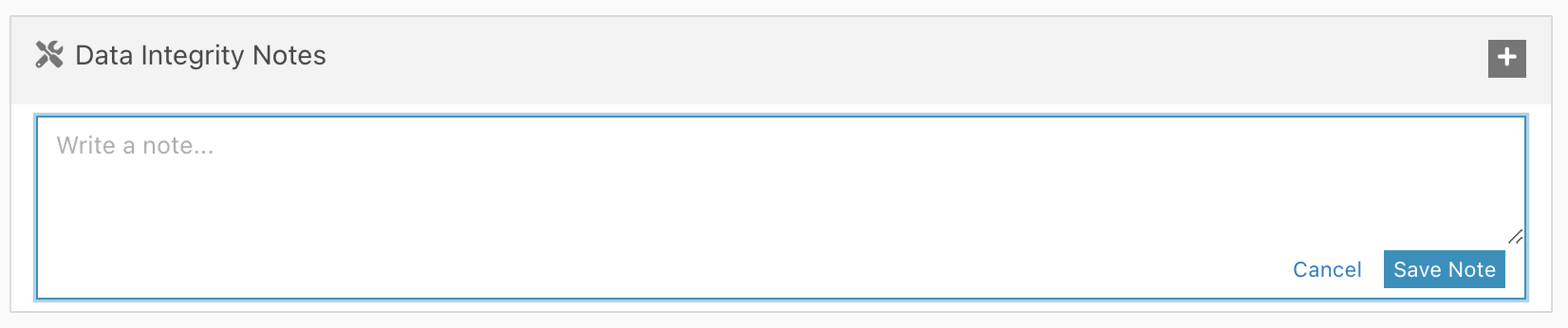
Data Integrity Notes: Notes of this type are specific to our central Data Integrity Team. This area is used to take notes when updating a profile or special circumstances that may be needed when updating a profile in the future.
- Who can view these notes:
- Data Integrity Team
- Who can edit these notes:
- Data Integrity Team
The following notes are available from the [ Academy ] tab on each Rock profile.
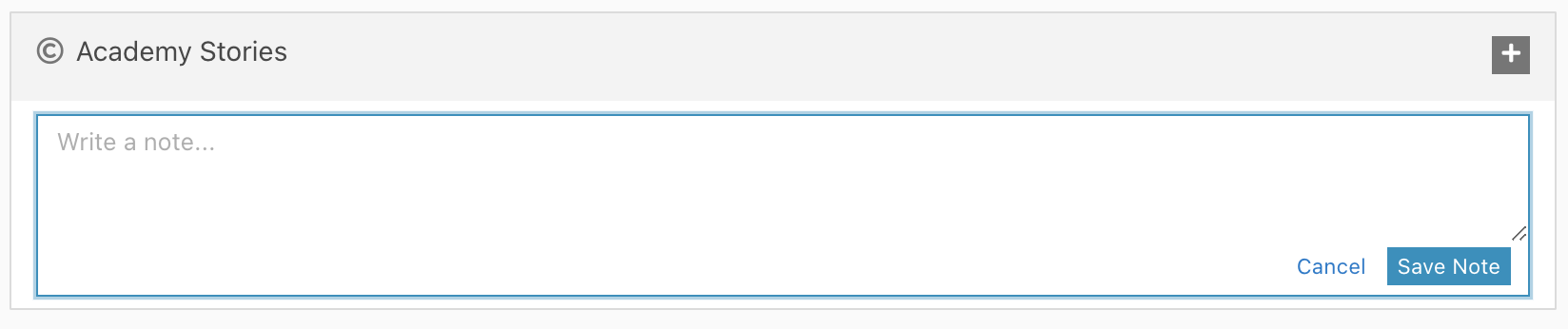
Academy Stories: Notes of this type are specific to CreekHelp Academy. These notes are used to store success stories and feedback on CreekHelp Academy
- Who can view these notes:
- Everyone
- Who can edit these notes:
- Software Compatibility Team
The following notes are available from the [ Care ] tab on each Rock profile.
Care Notes: When writing or viewing a note in this section, you are given 3 different types (listed below). These notes are unique to the care of each person.

- Care Notes
- These notes are usually automatically populated by filling out a Care Form. These notes are any notes that may be taken on the general care of a person. When a note is added in this category, an email is automatically sent to a group of people to ensure that specific staff are aware of the added note. Subscribe to receive these notifications here: https://my.cedarcreek.tv/page/1241
- Who can view these notes:
- Staff
- Safety and Care Team
- Care Team
- Pastoral Workers
- Check-in DreamTeam
- My Story Editors
- Who can edit these notes:
- Safety and Care Team
- Financial Assistance Application
- These notes are a Legacy Note type. These notes were used historically for Financial Assistance prior to moving to Benevolence in Rock.
- Who can view these notes:
- Staff
- Safety and Care Team
- Care Team
- Pastoral Workers
- Check-in DreamTeam
- My Story Editors
- Who can edit these notes:
- Finance Administration
- My Story
- These notes are usually automatically populated by filling out a Baptism Interest Form or a LifeChange Story Form. These notes tell us a story on a persons spiritual journey. When a note is added in this category, an email is automatically sent to a group of people to ensure that specific staff are aware of the added note. Subscribe to receive these notifications here: https://my.cedarcreek.tv/page/1241
- Who can view these notes:
- Staff
- Safety and Care Team
- Care Team
- Pastoral Workers
- Check-in DreamTeam
- My Story Editors
- Who can edit these notes:
- Project Managers
- My Story Editor
- Safety & Care Team
GROUP NOTES
The following notes are available from a specific groups page. These notes are all tied to
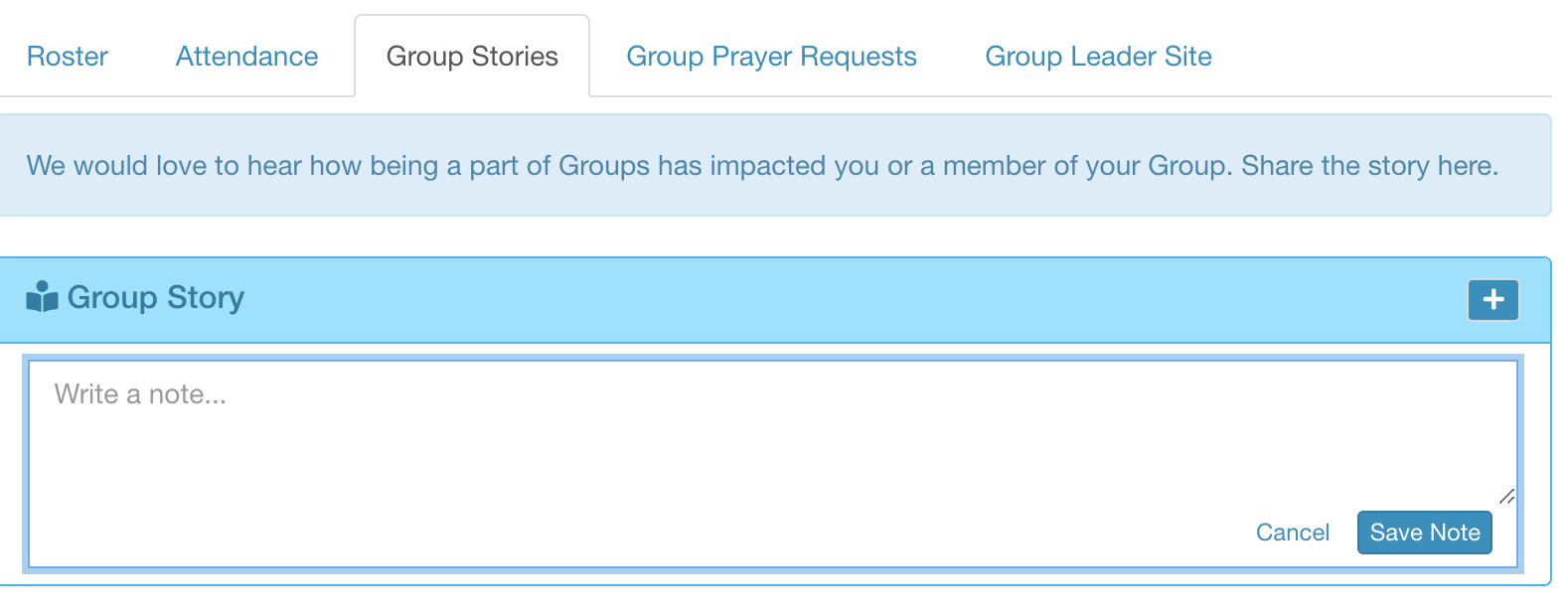
Group Story: Similar to [ My Story ] notes, Group Story notes tell us a story on a group or group members spiritual journey. However; these notes are not automatically populated. They can be manually populated from internally within Rock or externally within the Group Leader Toolbox. When a note is added in this category, an email is automatically sent to a group of people to ensure that specific staff are aware of the added note.
- Who can view these notes:
- Staff
- Group Leaders

Internship Notes: These notes are specific to Internship Groups only. These notes are used by Direct Reports and Mentors of the internship class to track progress throughout the interns time.
- Who can view these notes:
- Internship Team
- Internship Mentors
- Finance Administrators
